> ## Documentation Index
> Fetch the complete documentation index at: https://docs.magicblock.gg/llms.txt
> Use this file to discover all available pages before exploring further.
# Module #3
> Import the project and and chess scene into Unity
In the third module we'll learn how to set up the chess UI in Unity, convert the IDL to C#, build transactions and listen to state changes from the chain to update the game client.
You find the open source repository [here](https://github.com/magicblock-labs/sol-chess)
Here are the steps to follow
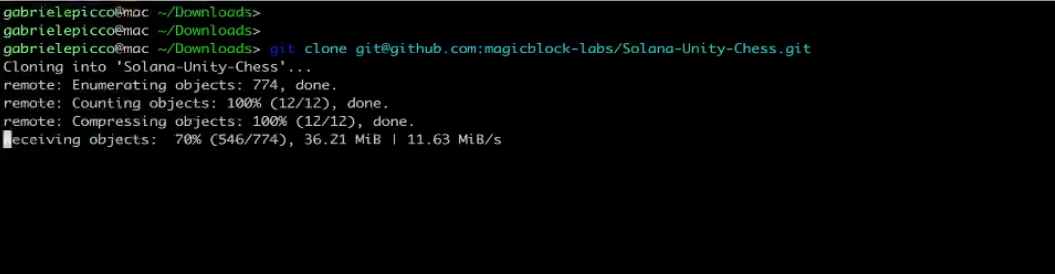
* Clone the URL of the repository `git@github.com:magicblock-labs/sol-chess.git`
* open the terminal and run `git clone git@github.com:magicblock-labs/sol-chess.git`
 * open the unity hub and select the project you have just downloaded
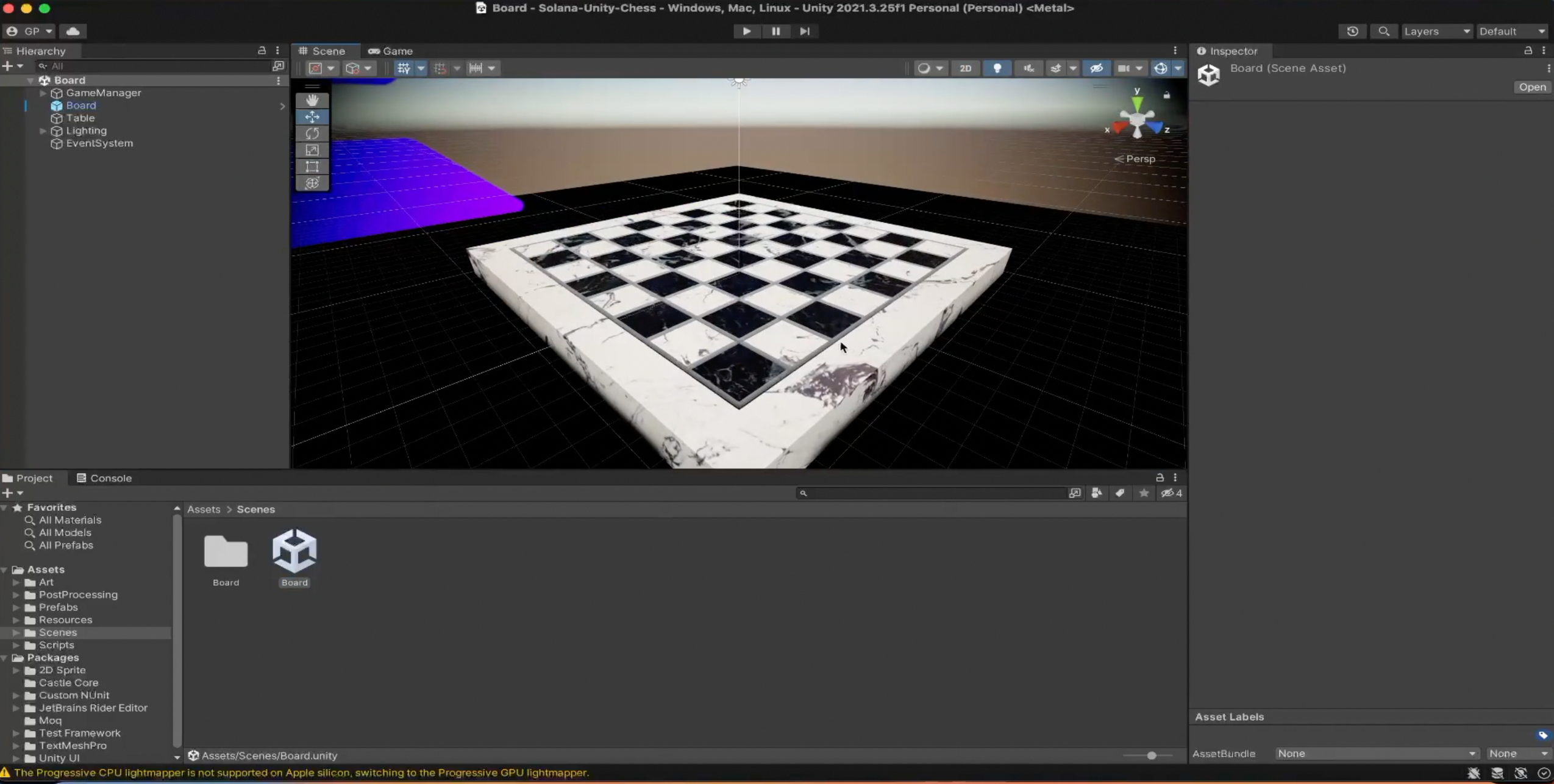
In Assets/scenes you find the board scene with the 3d meshes
* open the unity hub and select the project you have just downloaded
In Assets/scenes you find the board scene with the 3d meshes